Tutorial - How to Colorize Black and White Videos using Pixbim Video Colorize AI
Why colorize black and white videos?
Colorization of black and white videos is like bringing history back to life. Watching the colorized video creates a feeling of excitement.
Is it easy to colorize black and white videos?
Below is a video on how to colorize black and white videos using Pixbim Video Colorize AI software
Manually coloring a black and white video is time-consuming and costly, AI colorization has evolved and developed over the years with significant improvement in results. Pixbim Video Colorize AI has come up with Artificial Intelligence techniques to colorize black & white videos automatically without any hassle.
It is quite easy to colorize a video through Pixbim Video Colorize AI. It doesn't require any editing skills, you can just load a B&W video you want to color and click the start button for colorizing the video. Within a few minutes, you get an AI-colored output video. You can load any type of video format in Pixbim Video Colorize AI (Mp4, MPEG, Mkv) and it can be colorized automatically with just one click.
Below are the steps on how to colorize a black and white video automatically using the "Pixbim Video Colorize AI" tool
What’s new in Pixbim Video Colorize AI v2.0?
With the new Pixbim Video Colorize AI version, you have more flexibility, control, and automation. It is a combination of the old version and the new version. Users don’t need to worry—if they want the old version for colorizing, they can select that model, and they can also select the new AI model. In fact, it opens room for testing and making the best colorization for your video.
How many models are there in Pixbim Video Colorize AI v2.0?
In version 2.0, there are three models.
- The old model of Pixbim Video Colorize AI v1.0
- The new AI model version 2.0 – manual and fast processing
- The new AI model version 2.1 – automatic and slow processing
Here is how you can colorize a black and white video using Pixbim Video Colorize AI v2.0
Step 1 – Download and install Pixbim Video Colorize AI:
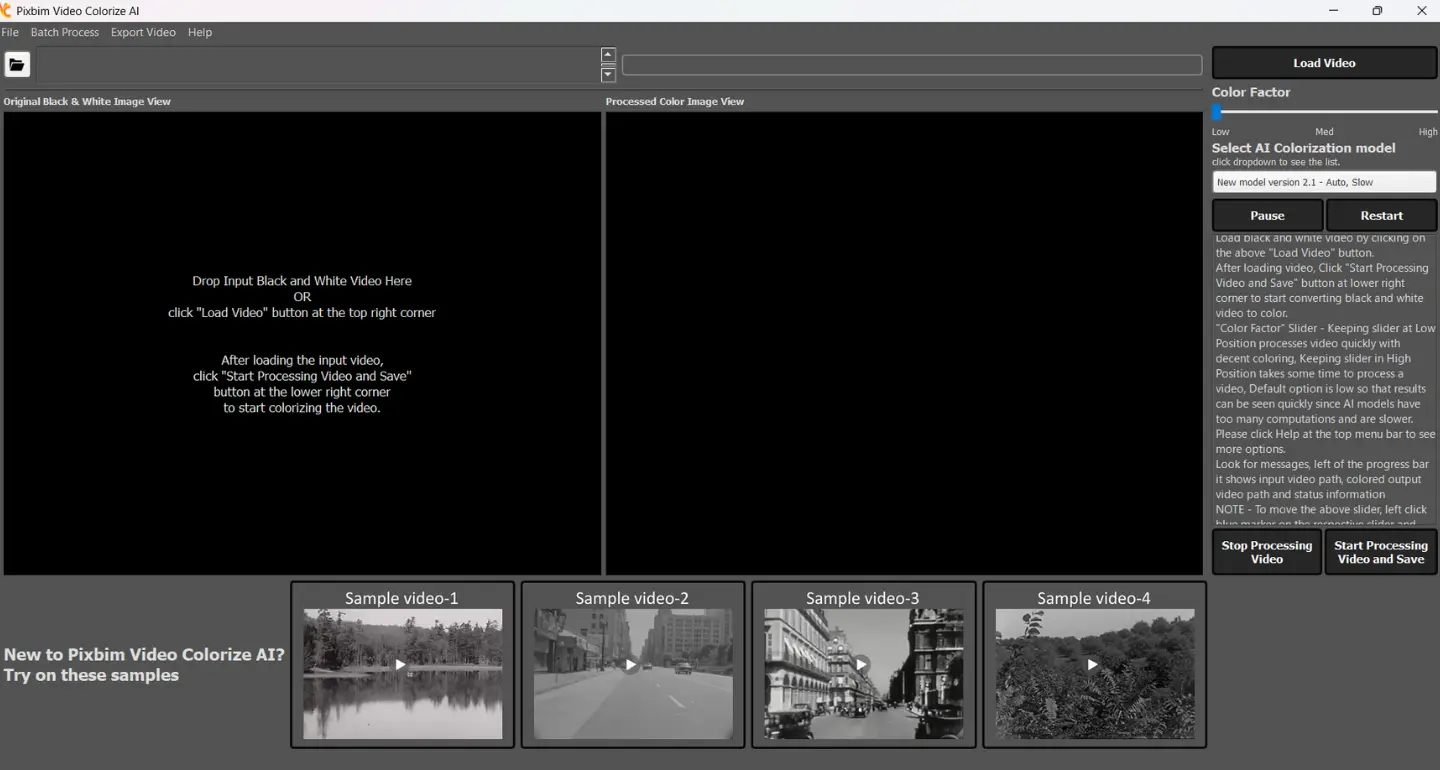
Start downloading and installing Pixbim Video Colorize AI. We have shown the dashboard of Pixbim Video Colorize AI, where on the right side, from top to bottom, you can see the Load Video button, Color Factor slider, dropdown for selection of AI models, Pause & Start button, Start Processing Video and Save, and Stop Processing Video button. You can see the sample input videos at the bottom, and options like Batch Processing, Export, and Help on the top menu bar.
Step 2 – Load the input video
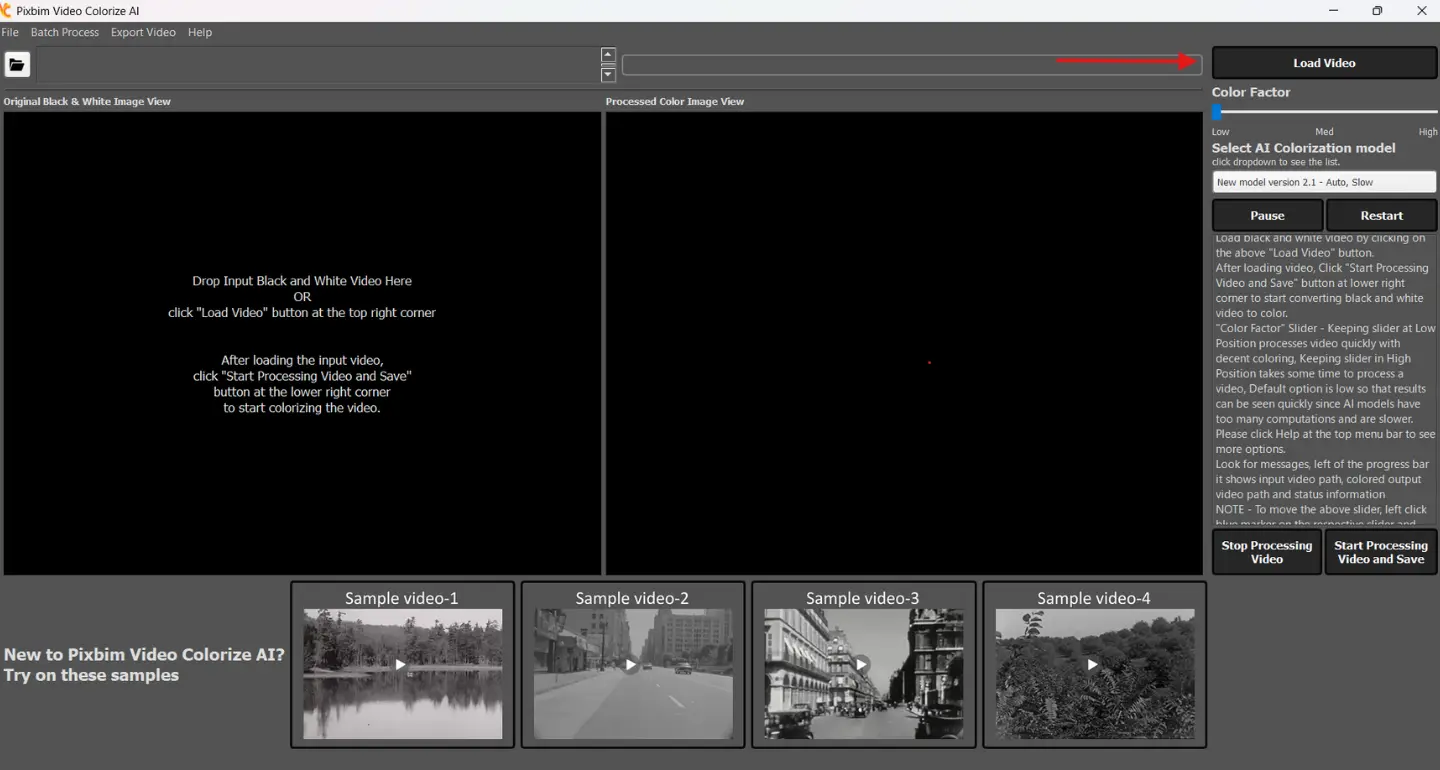
After installing the software, you can load the input video. Click the Load Video button and select the input video from your desktop or laptop.
Try out sample videos for quick testing (Optional)
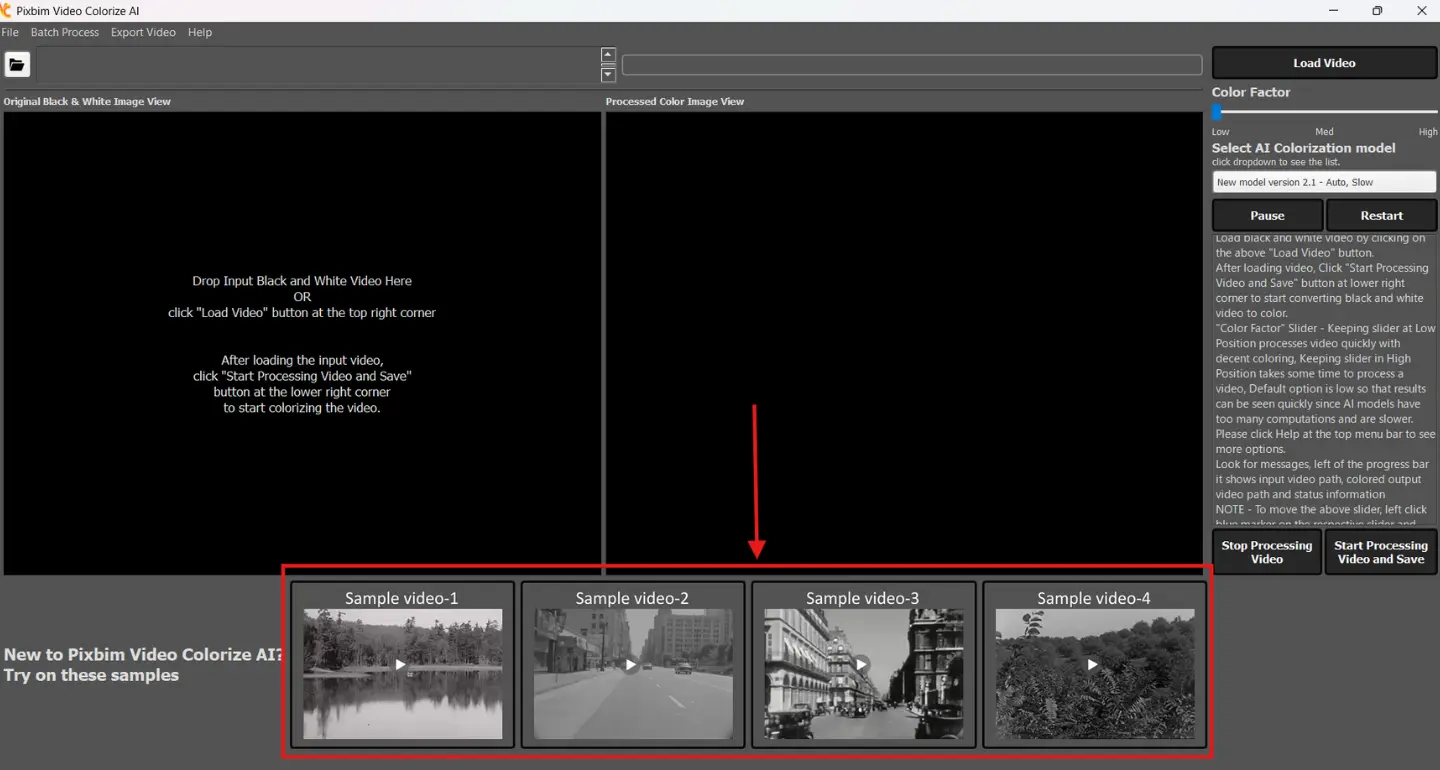
If you are trying the trial version and want quick testing, you can try the sample videos for faster testing and output comparison. If you want to see how each AI model outputs, you can first try the sample videos given at the bottom.
Step 3 – Select the AI models
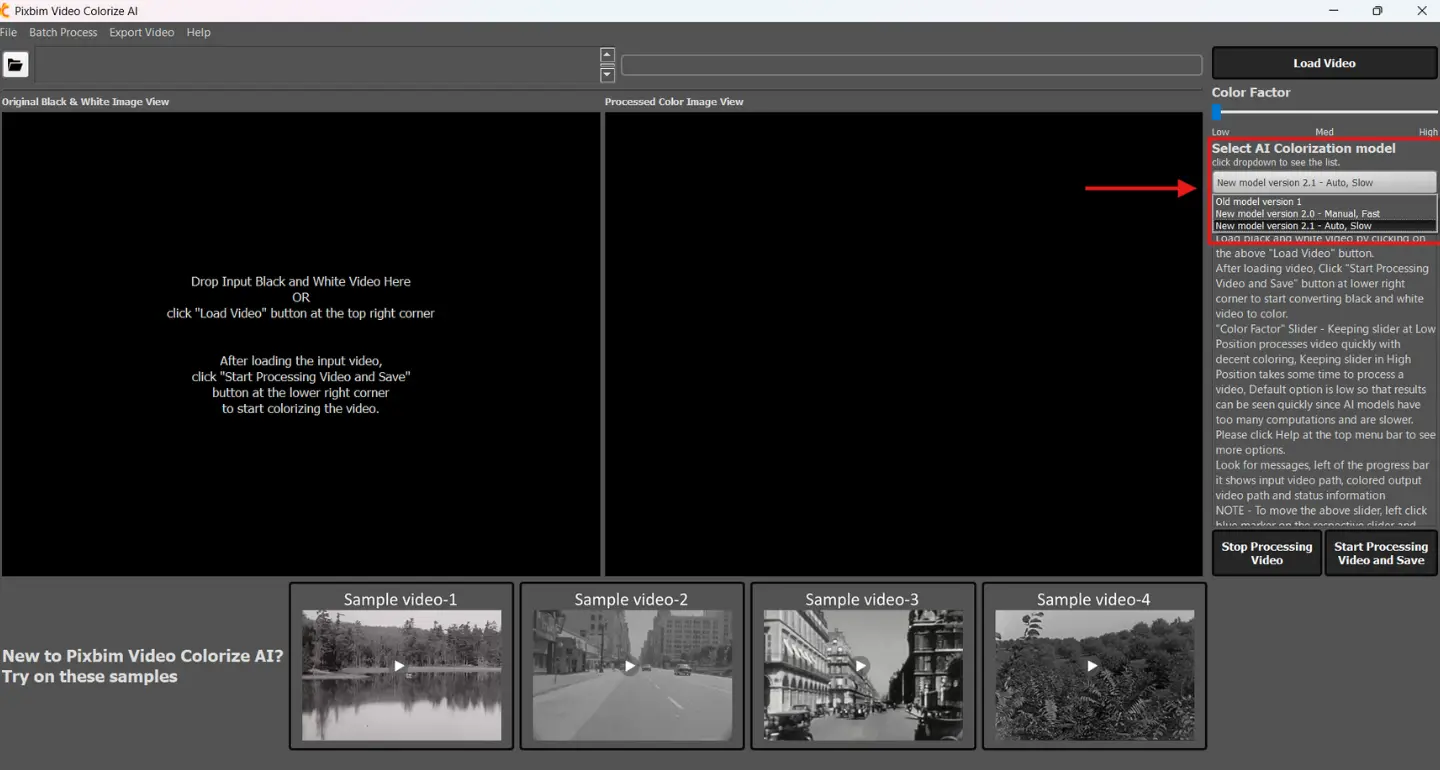
You can select the AI models using the Select AI Colorization Model dropdown, which includes the old version, manual v2.0, and automatic v2.1. By default, New Model Version 2.1 – Auto, Slow is selected.
The old model of Pixbim Video Colorize AI version 1.0
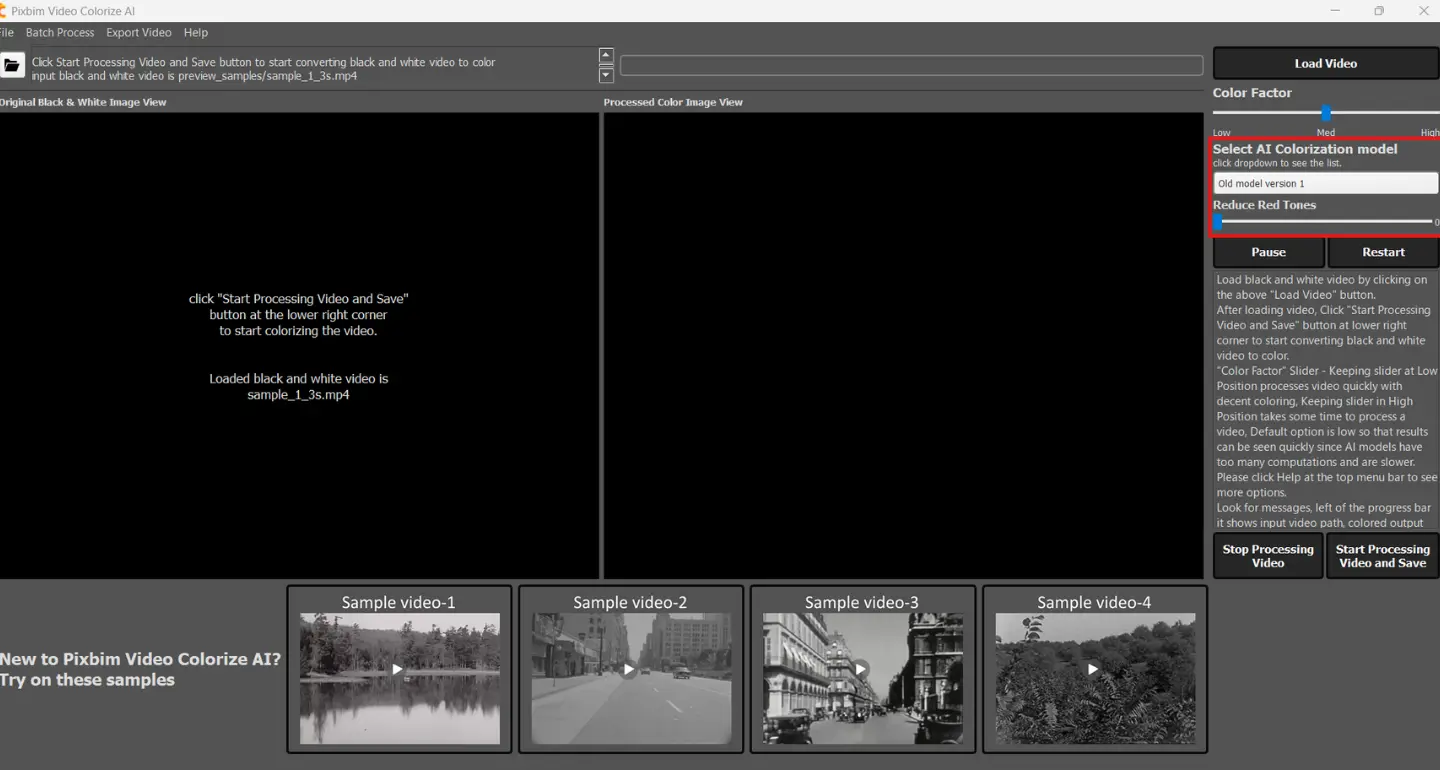
This is the AI model used in the older version and is included here. The output will be the same as colorizing with Pixbim Video Colorize AI v1.0.
The new model version 2.0, manual and fast
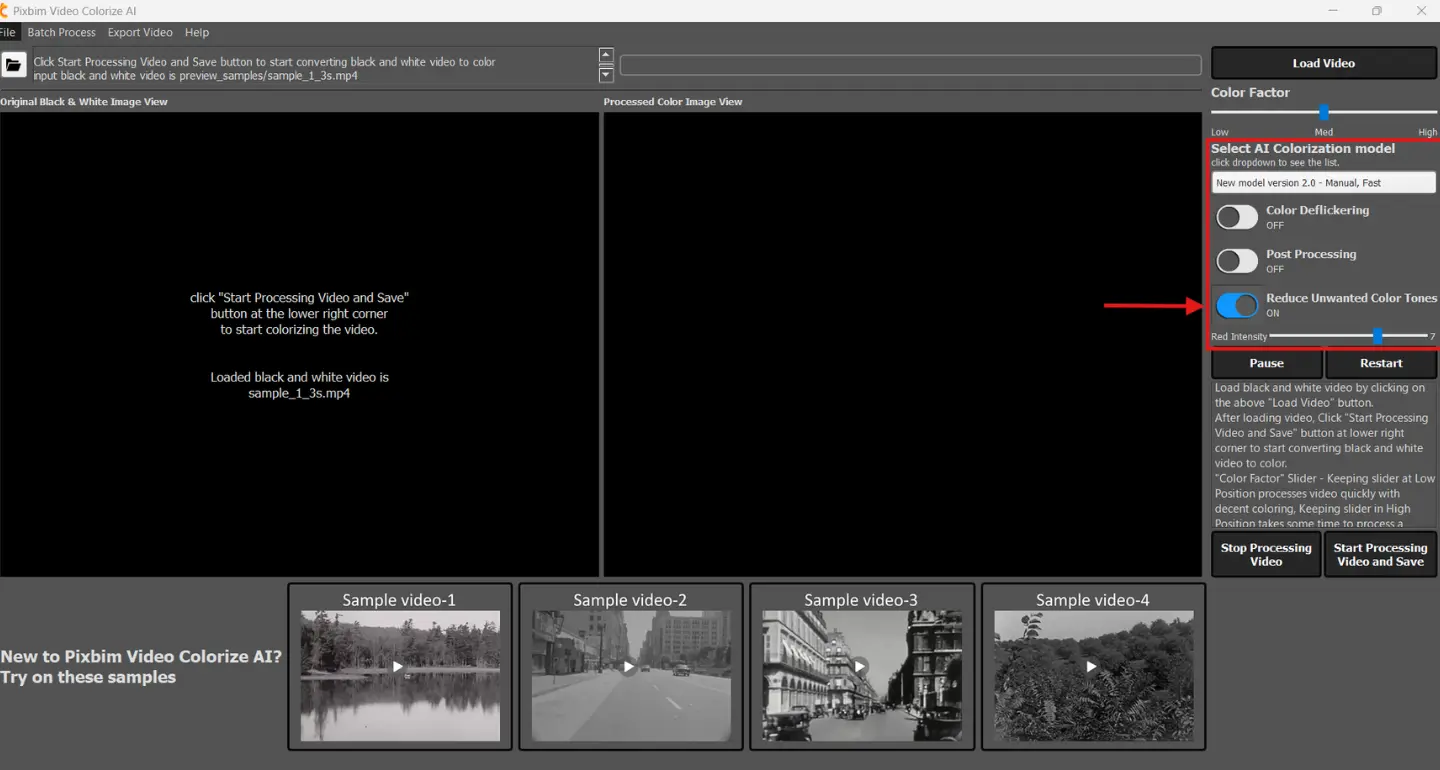
This model is faster. You can see parameters like Reduce Unwanted Color Tones, which is always enabled for optimal coloring. You can use the Red Intensity slider if you feel there are more reddish tones on the screen.
New model version 2.1, Automatic and Slow
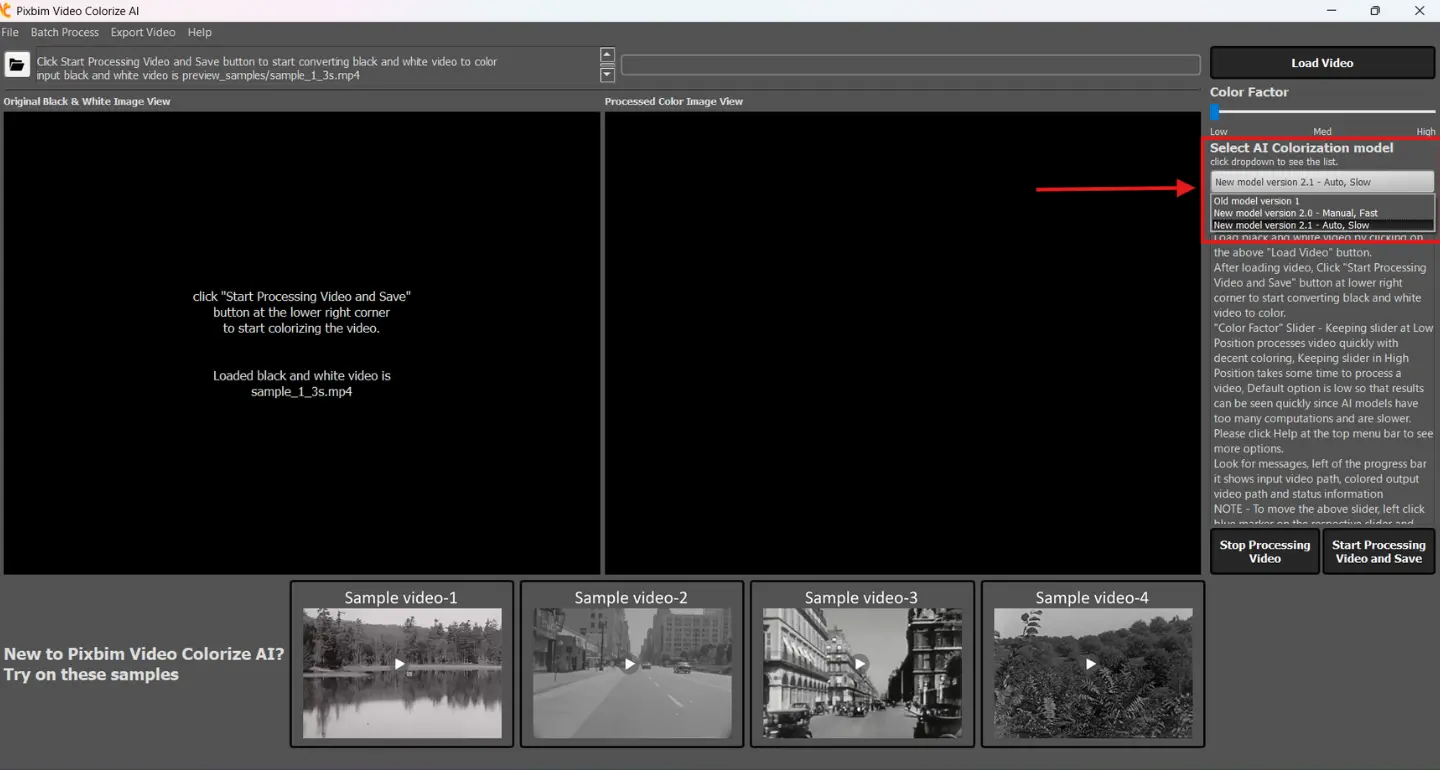
This model is automatic and slow. All parameters are tested and set to an optimal point, where new users can directly load a video and select this AI model. This is suitable for users who don’t want to change any settings.
Step 4 – Select the Color Factor
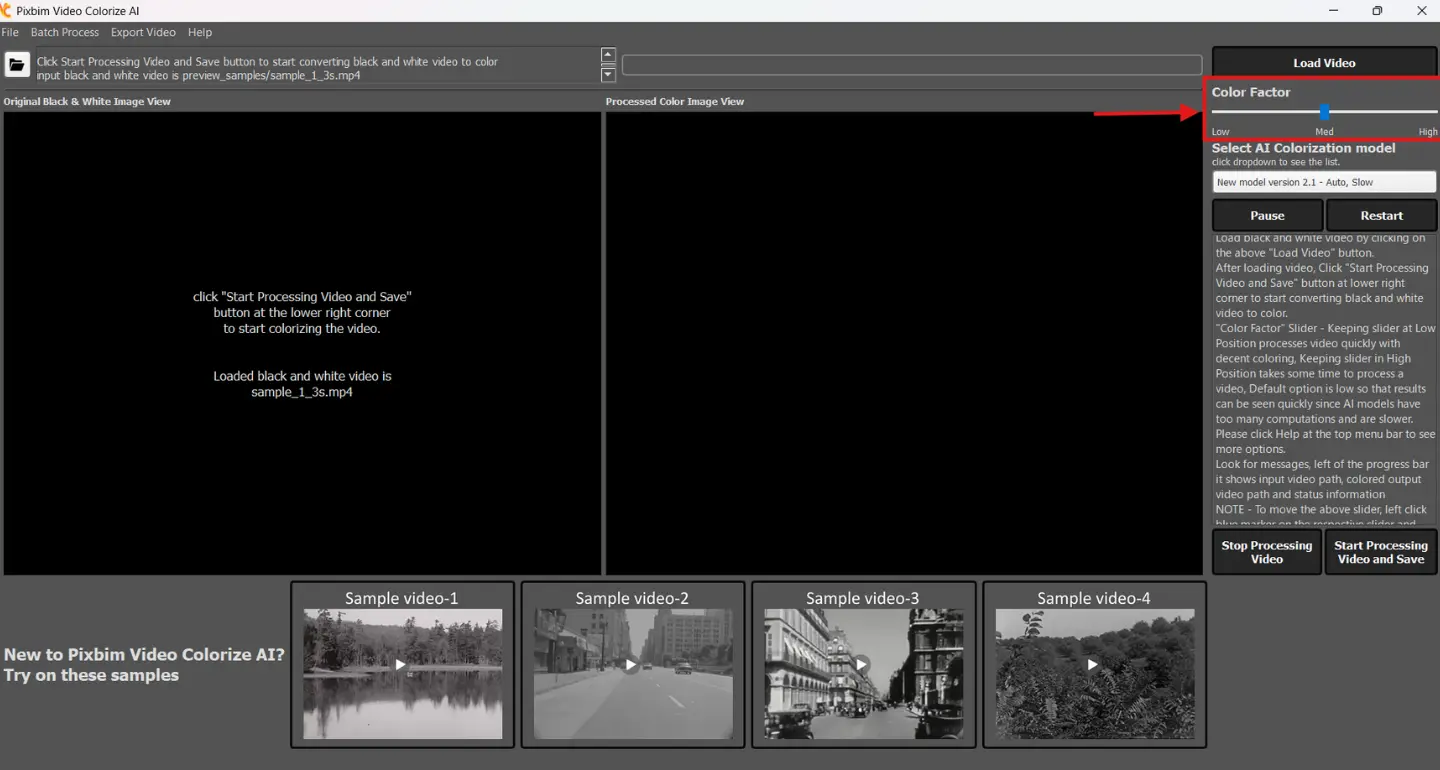
By default, the Color Factor is set to Low, and you can change it to Medium or High. Medium or High increases the processing time so we suggest Low (default).
Step 5 – Start the video colorization process
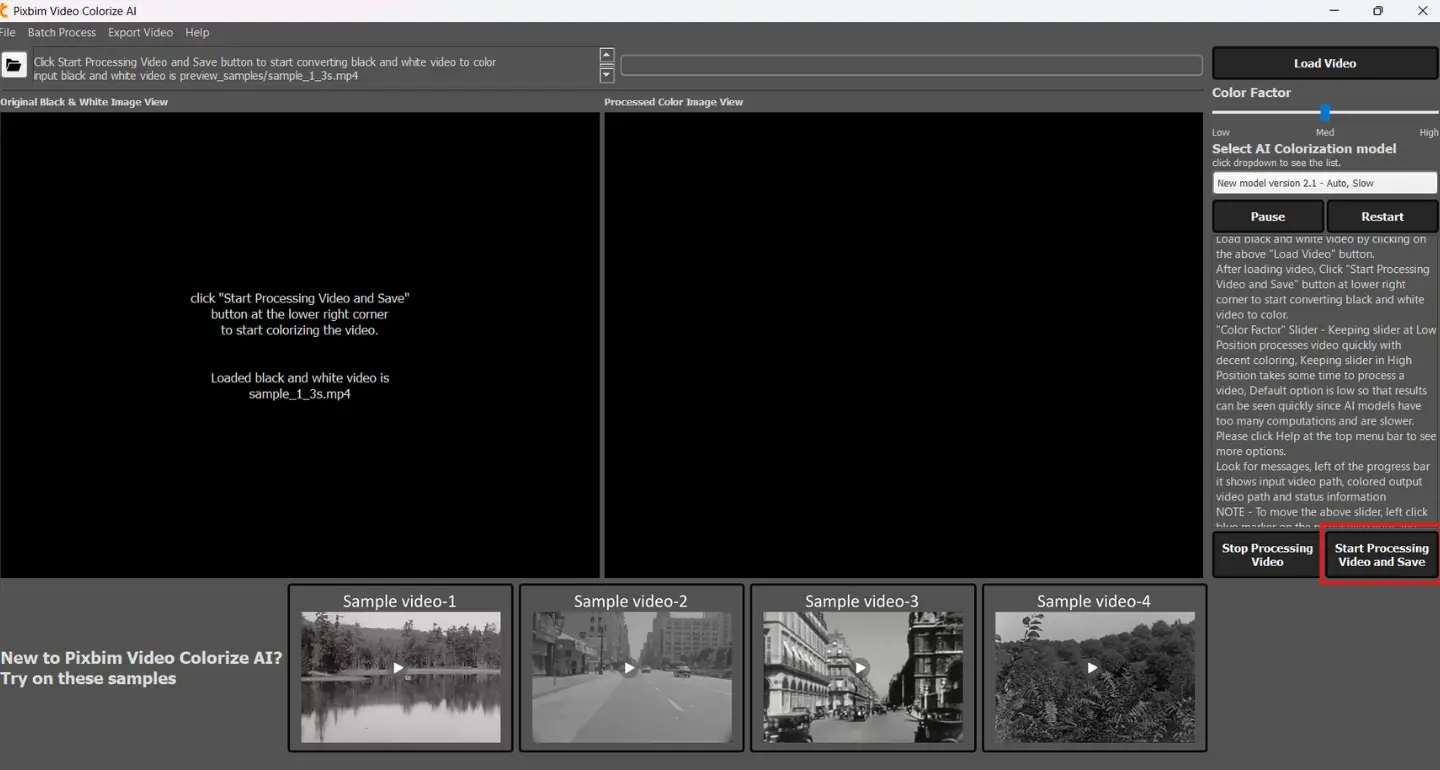
After loading the input, start the video colorization process. Click the Start Processing Video and Save button, and the software allows you to save the output video in your preferred location. You can rename the output as well. Once you name and save the output in your preferred location, the software will begin the video colorization process.
Step 6 – Access the colorized output
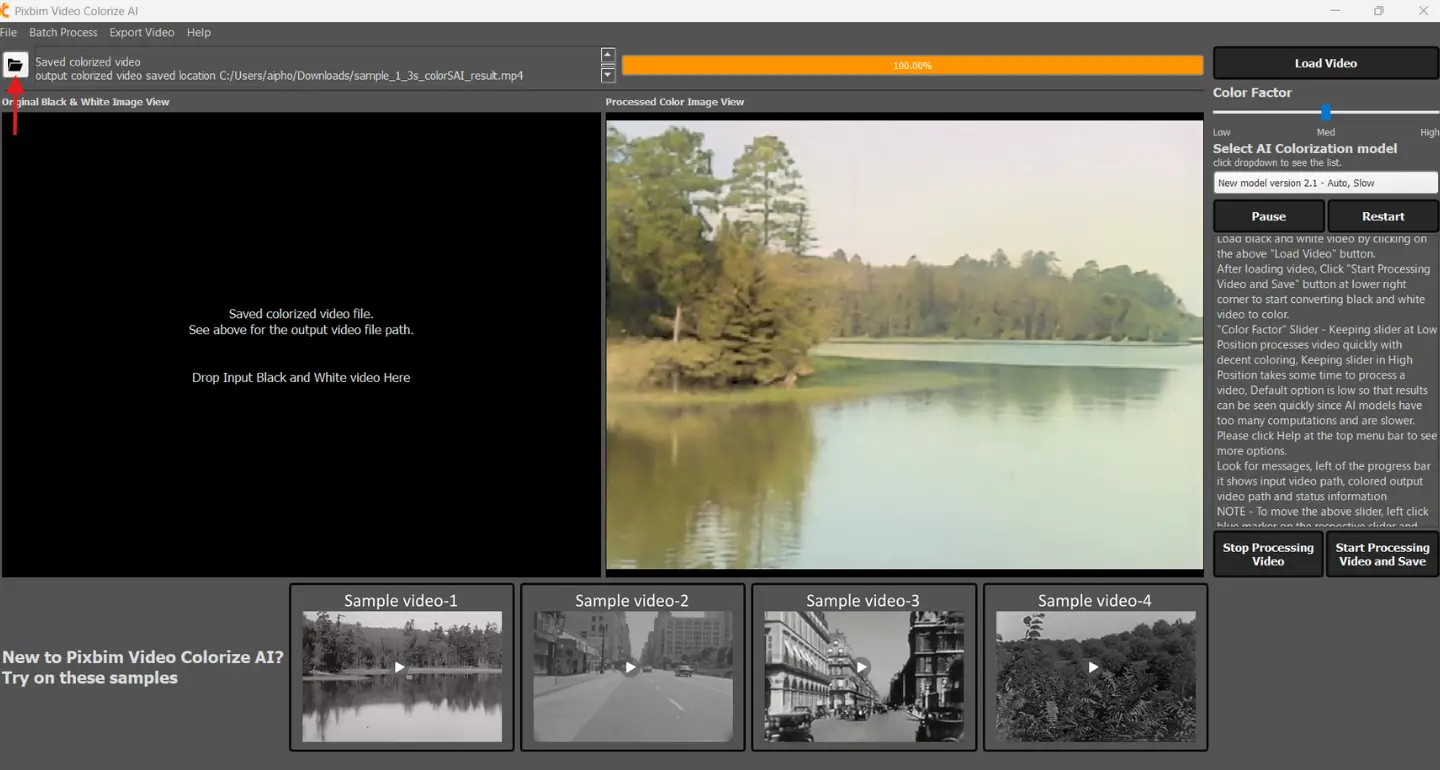
While the software is processing, you can see the progress using the progress bar. You can also see frame-by-frame colorization, where the left side shows the input frame and the right side shows the colorized frame. Once the video is completely processed, the progress bar will reach 100%. You can directly access the output using the icon indicated in the screenshot.
Batch Processing Mode
The basic function of batch processing is to reduce time and user intervention if you have a collection of black and white videos that need to be colored at once without manual interference.
How to colorize a collection of black and white videos through a single click? - Automatic video colorization using batch process
Step 1 – Click the Batch Processing option
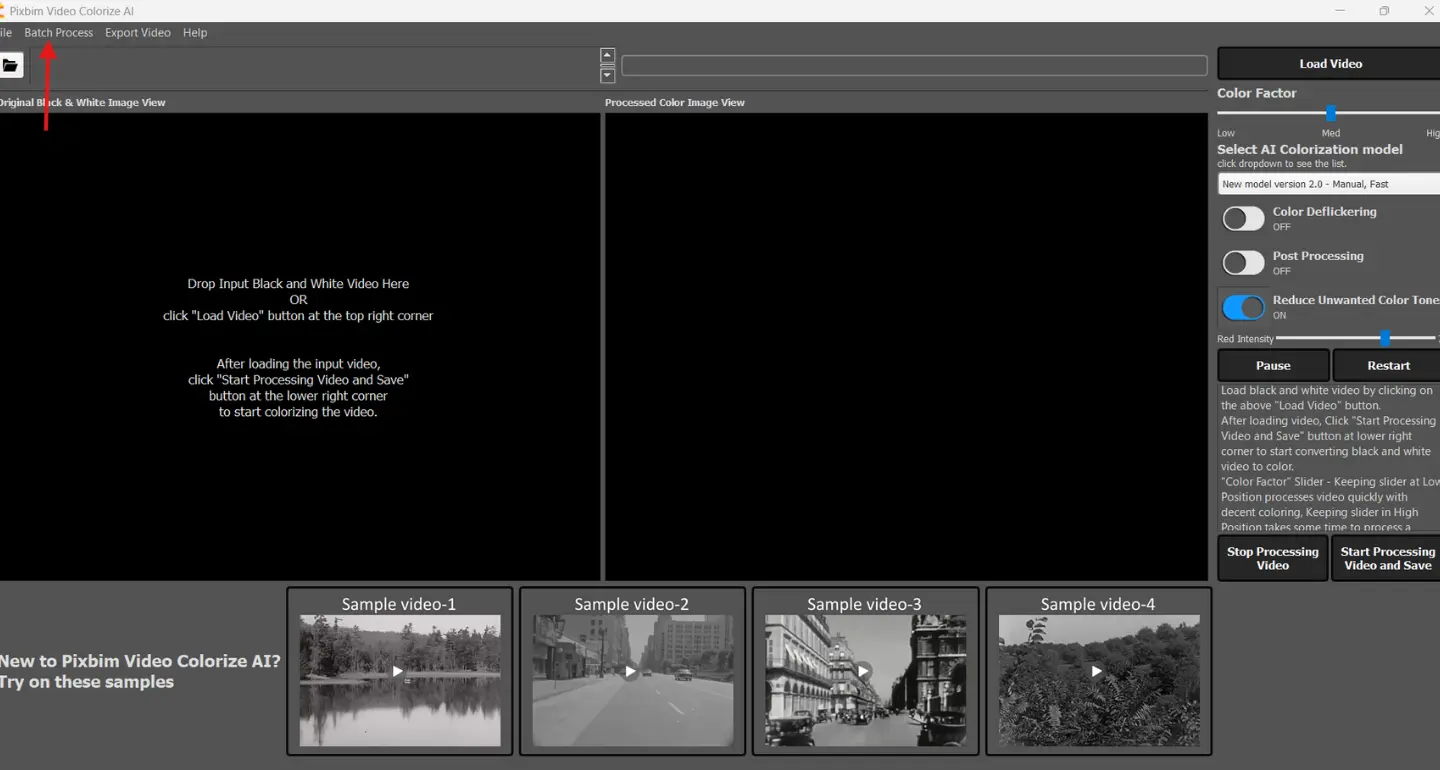
Before batch processing, organize all input videos that need to be colorized into a single folder. Then click the Batch Process option on the top menu bar.
Step 2 – Select the folder
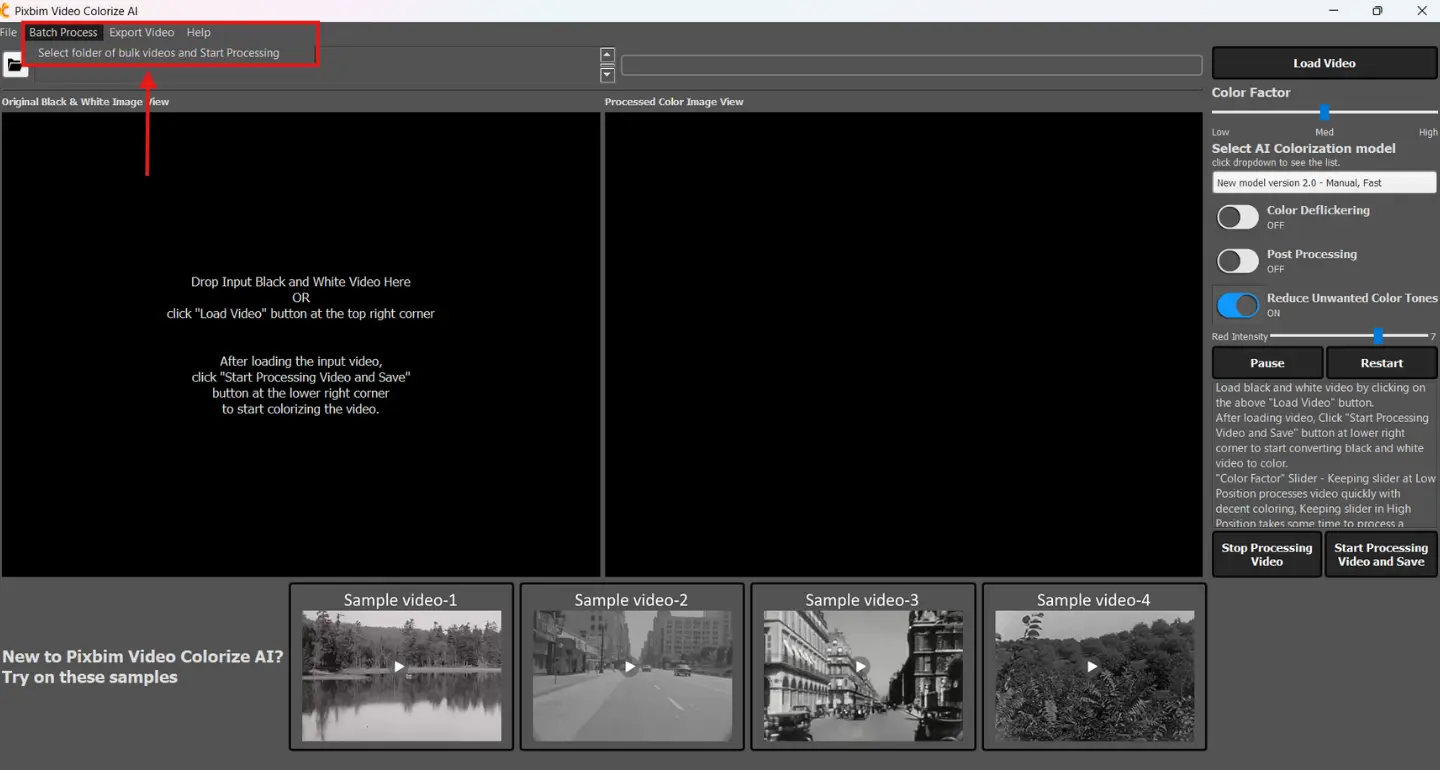
Select the option Select the folder of bulk videos and start processing, and choose the folder. The software will detect how many videos are inside the folder and process them one by one.
Note:
For batch processing, you can select any AI model. If you already have preferred parameter values, you can adjust them before running. You can also change values in between and run again. The optimal setup is selecting the Color Factor as Low, enabling Deflickering, and always enabling Reduce Unwanted Color Tones.
Pause & Restart
You can pause video colorization if you have important tasks in between that need to be prioritized. You can pause using the Pause button and restart the colorization process at any time. This gives flexibility when colorizing black and white movies.
Export Video
The Export Video option is used to download partial colorized output to see how the video is colorized. If you have a big movie or long footage running for hours and need to see the output instantly, you can partially download the output and preview it.
This also helps users adjust parameters to get optimal colorization. The exported output will not have audio. Please don’t think this is an error. In the Export option, you will get only the colorized output without audio.
Features of Pixbim Video Colorize AI
1. It is a user-friendly tool that provides flexibility and control. It also allows new users to handle it like a pro with an automatic AI model.
2. It is an affordable software to colorize millions of black and white videos at $59.99.
3. No subscription.
4. It provides unlimited lifetime usage, meaning users can colorize black and white videos any number of times with a one-time fee.
5. It ensures 100% user data privacy. Input videos are not stored in the cloud. Processing and output are done on the user’s machine.
6. Pixbim Video Colorize AI does not require an internet connection to run or process videos. It is a smart, offline standalone system.
7. It provides regular free upgrades. The recent update is Pixbim Video Colorize AI v2.0.0, which includes new manual and automatic AI models along with the old model, giving users full control and flexibility.
FAQs - Frequently Asked Questions
Can I use the old AI model version in Pixbim Video Colorize AI v2.0?
Yes, you can use the old AI model in the new version. Just select it from the dropdown. You can still use the Reduce Red Tone slider as in the previous version.
I want to try Pixbim Video Colorize AI as a beginner. How should I go about it?
Download and install Pixbim Video Colorize AI. Try the sample videos provided with the software for quick results. Avoid changing settings initially and check the output. Once downloaded, you can test on your own videos and experiment with different AI models. We recommend the new automatic model after testing with samples.
What is the best parameter setting for video colorization?
It entirely depends on the input video and user preference. We recommend Low color factor and the new automatic model. If you face color flickering, switch to the manual mode and enable color deflickering.
What is the purpose of the color deflickering option?
Some input videos may show color flickering during or after colorization. Enabling the color deflickering option helps suppress the flickering effect.
What is the purpose of post-processing, and why are two sliders provided: Color Shift and Color Intensity?
Post processing is used to improve color accuracy and balance after colorization. It helps reduce flickering, maintain consistency, remove noise, and smooth edges, resulting in a more natural-looking video.
I want to colorize black and white footage that runs for several hours. How should I do that? Which AI model is better?
Load the input video and let it run for some time. Use the Export Video option to preview the output. Change the AI model and run again, saving outputs with different names for reference. Exported outputs will not have audio—this is expected behavior.
Does Pixbim Video Colorize AI offer unlimited video colorization?
Yes, Pixbim Video Colorize AI offers unlimited lifetime usage with a one-time payment. There is no subscription. If you have a large archive of black and white footage, Pixbim Video Colorize AI is an affordable and efficient solution.
How do I turn a black and white video into color?
You can colorize a black and white video using a video colorizer like Pixbim Video Colorize AI. The software has three different AI models that allow users to colorize old videos. Users can choose between manual and automatic options, which gives a lot of flexibility. This makes Pixbim Video Colorize AI one of the best software options to colorize black and white videos.
What software is used to colorize videos?
Pixbim Video Colorize AI is software used for colorizing old footage and videos. Whether you have thousands or millions of black and white videos in your collection, Pixbim Video Colorize AI is an efficient and affordable solution. With a one-time fee of $59, you get unlimited video colorization with no subscription. You can colorize videos for a lifetime.
What is the best software for colorizing black and white videos?
Pixbim Video Colorize AI is one of the best software for colorizing black and white videos. It provides flexibility and user control. There are three different AI models, and users also have manual options to adjust color factor, enable color deflickering, and control post-processing options. It offers both manual controls for experienced users and an automatic option for new users.
Can AI colorize videos?
Yes, AI is an effective way to colorize old black and white videos. AI models are smart enough to identify colors and respond to dynamic frame changes, where traditional coloring methods are difficult. You can colorize old black and white footage to look like it was captured using a modern video camera or smartphone. Video colorizers like Pixbim Video Colorize AI use advanced AI models to make this process easier.
How to colorize black and white footage?
Use Pixbim Video Colorize AI. Load the black and white video and start the video colorization process. It is easy for new users to get started.
How to colorize old film?
First, convert the film into a digital format. Then load the digital version into Pixbim Video Colorize AI and colorize it. One advantage of Pixbim Video Colorize AI is the availability of manual settings, allowing you to colorize the film based on your personal preference. You can colorize the film multiple times to test and achieve the best result.
Can AI colorize black and white film?
Yes, AI is one of the best ways to colorize old black and white films. AI models learn from a large number of samples, making the process faster and more accurate. Modern AI models are more precise than traditional colorization methods. Pixbim Video Colorize AI uses advanced AI models that can colorize films accurately, making them look like they were filmed recently.
Below is a video that demonstrates how to use the "Pixbim Video Colorize AI" tool
Try Pixbim Video Colorize AI for Free
The convolutional neural network interprets what the colors should be from a black and white frame and fills in the color. This makes AI predict the colors and fill the pixels with colors which makes the output video feel more realistic.
Buy Pixbim Video Colorize AI for $59.99 $79.99
Now, colorizing a video can be easily achieved using the Pixbim Video Colorize AI tool.
Free Download Pixbim Video Colorize AI
Follow us on our Official Youtube Channel and Facebook Page
Enjoy Colorizing B&W Videos!!!..
More from Pixbim